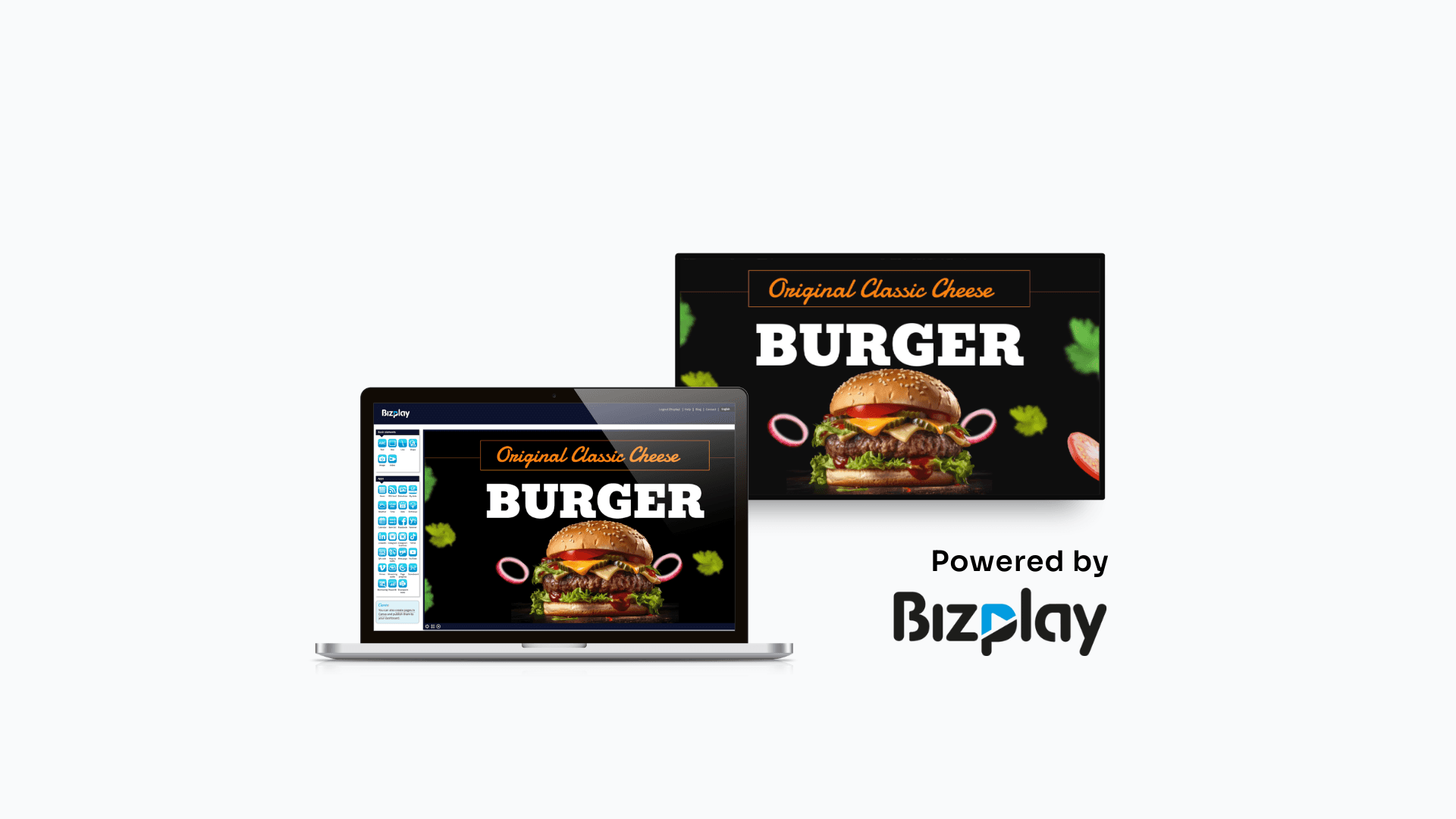

Let’s keep this simple.
You’ve got a website. You’ve got a screen. And you’re wondering: how do I display my website on the TV without overcomplicating things?
Whether it’s a dashboard, a menu, or just something you want people to see in real time, displaying your website on a smart TV is one of the easiest ways to make your content more visible, and more useful.
The trick isn’t just getting it on the screen. It’s getting it to work reliably, clearly, and without constant maintenance.
The good news? It’s not complicated. The better news? When done right, it can completely change how you communicate with people in real time.
Here’s how to do it properly.
What it means to display a website on a smart TV
When you display a website on a TV, you’re essentially turning that screen into a live view of your online content. The key difference is that your content isn’t fixed. It updates automatically whenever your website changes. That means no USB sticks, no manual uploads, no constant tweaking. You update your website once, and your screen reflects it instantly.
That’s why this setup is often associated with digital signage: it allows screens to show dynamic, real-time information without manual updates.
It also means you don’t have to create separate content for your TV. You’re simply reusing what you already have, so your website becomes the single source of information and your screens become an extension of it. This makes sense when your content changes frequently, such as dashboards, schedules, or internal updates. You don’t want to redesign those every day, you just want them to stay accurate.
When you display a website on a TV, you unlock:
Real-time updates (no manual changes needed)
Dynamic content (dashboards, feeds, analytics)
Centralized control (update once, reflect everywhere)
Instead of uploading new images every week, your screen simply reflects what’s already happening on your website.
The 3 main ways to display a website on a smart TV
There's a few ways to show webpages on Smart TV's. Let's break it down simply.
Use the built-in smart TV browser (quick & basic)
If you just want to test things out, your TV probably already has what you need. Most smart TVs include a web browser.
How it worksOpen the browser
Enter your URL
Switch to fullscreen
It’s a good starting point, especially if you’re experimenting or setting something up temporarily. But it does come with limitations:
❌ No auto-refresh
❌ No scheduling
❌ Can crash or time outIn short, it works, but it’s not reliable for business use.
Use digital signage software (best overall)
This is the most powerful and flexible method. And, it might sound technical, but it is easier to set up than you might think.
Instead of manually opening a browser or worrying about your screen timing out, digital signage software turns your TV into something much more reliable: a screen that just works all the time without needing attention.At a basic level, it connects your TV to a cloud platform where you control everything remotely. But in practice, it does something more important: it removes all the friction from keeping your content live and up to date.
Once it’s set up, your website loads automatically, refreshes in the background, and stays exactly how you want it, whether that’s on one screen or across multiple locations.
How it works (simple overview)
Choose your digital signage software
Add your website URL
Publish it to your screen
Why this method works betterIf you’re only displaying something occasionally, a browser might be enough. But the moment your screen becomes part of your daily operations, things change.
You need your content to stay live. You need it to update automatically. And you need to control it without being physically in front of the screen.
That’s exactly what digital signage software is designed for.
Key advantages (what you actually gain)
Your website refreshes automatically on a schedule you set
You can update screens remotely, rarely need to touch the TV
You can manage multiple screens from one place
You can schedule different content throughout the day
Playback is far more stable (no crashes, no interruptions)
Using an external device (When your TV can't do it alone)
When your TV isn’t smart, or just not powerful enough, you can plug in a small external device like:
Raspberry Pi
Amazon Fire Stick
Android TV box
These devices basically upgrade your TV, giving you access to apps and signage platforms that wouldn’t otherwise be available. Once connected, the setup works the same way as with a smart TV. Also read: Expert guide on digital signage media players.
So… which method should you choose?
Method | Best for | Pros | Cons |
|---|---|---|---|
TV Browser | Testing or a Quick demo | No setup | Not reliable |
Signage software | Daily use and for businesses | Scalable, automated (and most reliable) | Requires setup (but it's quick and easy) |
Media player | Non-smart TVs or when you want to display dynamic content, such as videos | Flexible | Requires Hardware |
If you’re just trying things out, use the browser. It’s fast and requires no setup.
But if you want something that runs smoothly every day without needing attention, digital signage software is the better choice. It removes the friction, gives you control, and scales with you as your needs grow.
👉 That’s usually the turning point when people go from “this works” to “this actually makes sense.”
Use cases (where this actually delivers value)
This isn’t just a technical trick, it solves real communication problems.
In offices, it’s used to display live dashboards so teams stay aligned without checking tools constantly. In restaurants, menus can be updated instantly without reprinting anything. In retail, promotions stay current without manual effort.
Even internal communication becomes easier. Instead of sending emails no one reads, you can display key updates in shared spaces where people naturally look.
That’s why digital signage has become such a widely adopted solution across industries like:
Offices and internal comms: Company updates, news, or live feeds. Display KPIs, analytics, or performance metrics in real time.
Restaurants and bars: Update prices or items instantly without reprinting.
Healthcare organizations and waiting rooms: Show wayfinding, schedules, queues, or announcements.
Retail stores: Promotions, campaigns, and product highlights.
Step-by-step: How to display your website using digital signage software (Bizplay)
Let’s make this practical.
If you want a setup that doesn’t require constant fixing, refreshing, or manual updates, using a platform like Bizplay is the simplest way to get there. The whole idea is to take something that normally takes effort, and make it run in the background without you thinking about it.
Here’s exactly how to do it.
Step 1: Create an account
Start by setting up your Bizplay account. It only takes a minute, and once you’re in, everything is managed from a single dashboard.
This is where you’ll control your screens, update content, and decide what gets displayed, whether it’s one TV or multiple locations.
No technical setup, no complicated onboarding. Just a clean starting point.
Step 2: Add your website URL
Now for the important part, bringing your website onto the screen.
Inside Bizplay, you can simply:
Create a new page and open the Page Designer
Choose Web page under apps to insert it in your design
Paste your URL under the Web Page properties
Save it, and within seconds your website is screen-ready.
Step 3: Adjusting settings for viewing
This is where you make it look right, not just “working,” but actually usable.
Bizplay lets you fine-tune how your website appears so it’s readable and clear on a TV screen.
Take a moment to:
Adjust zoom levels so text is easy to read from a distance
Enable auto-scroll for longer pages
Remove unnecessary elements if needed
These small tweaks make a big difference. They turn your website into something people can actually absorb in a few seconds.
Step 4: Publish and connect to your screens
Next, publish your content to a channel and connect your smart TV or media device to Bizplay.
Depending on your setup, this usually means:
Installing the Bizplay app on your playback device
Or open Bizplay in any web browser
Once connected, your screen is linked to your account and will show the content from your channel.
Step 5: Schedule and automate (optional, but powerful)
If you want more control, Bizplay lets you schedule when your website appears and combine it with other content.
For example:
Show dashboards during working hours
Switch to promotions or menus at peak times
Display announcements in the evening
You can also create playlists that mix your website with videos, images, or social feeds.
Set it once, and your screens stay dynamic without needing daily updates.
How to optimize your website for TV display (expert tips)
Just because you can display your website on a smart TV doesn’t mean it will look good. Websites are built for smaller screens, so text can be too small, layouts cluttered, and menus distracting. To fix this, simplify the layout, remove interactive elements, use larger text, keep everything visible without scrolling, and apply high-contrast colors. These small changes make your website clear, readable, and effective on a TV.
Design for distance, not interaction
Remove anything that requires clicking
Keep everything visible (avoid scrolling if possible, use auto-scroll when you can't)
Expert insight: Why digital signage beats “just using a TV”
At first glance, using a browser on a TV and using digital signage might seem like the same thing.
But the difference is control.
With a browser, everything is manual. If something breaks, someone has to fix it. If content changes, someone has to update it. With digital signage software, everything is automated. Content updates on its own. Screens stay in sync. And you can manage everything from one cloud-based digital signage platform. - Pascal Lindelauf, Founder of Bizplay.
That’s why more businesses are moving toward software-driven displays instead of relying on basic TV setups.
Display your website on your screen
Add your website URL, publish it to a channel, and see it live on your TV. Try Bizplay free for 14 days, no credit card required.













Can I display any website on a smart TV?
Do I need special hardware?
Can I display a live dashboard?
SHARE ON SOCIAL MEDIA